Online Flasher
The online flasher is the recommended way to install firmware for first-time users. It lets you flash the ESP32-S3 board directly from the browser without installing a local development environment.
Prerequisites
Chrome or Edge browser with Web Serial support
ESP32-S3 board connected with a USB Type-C data cable
Serial device visible in Device Manager or the system serial port list
Warning
Charging-only USB cables can power the board but cannot be used for flashing.
Note
If the board does not appear as a serial device, install the CP210x driver first and then try a different USB port.
Note
For the LAFVIN ESP32S3 AIChatBot on Windows, connect the USB Type-C data cable to the ESP32-S3 UART port for online flashing. On macOS, use the USB port and follow the macOS download-mode note below.
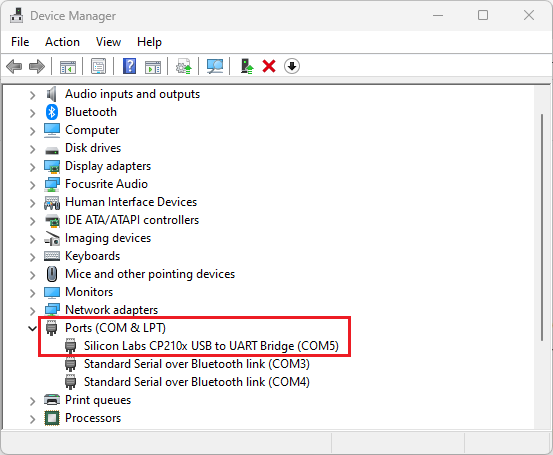
Flashing Steps
Open the online flasher: LAFVIN Web Flasher
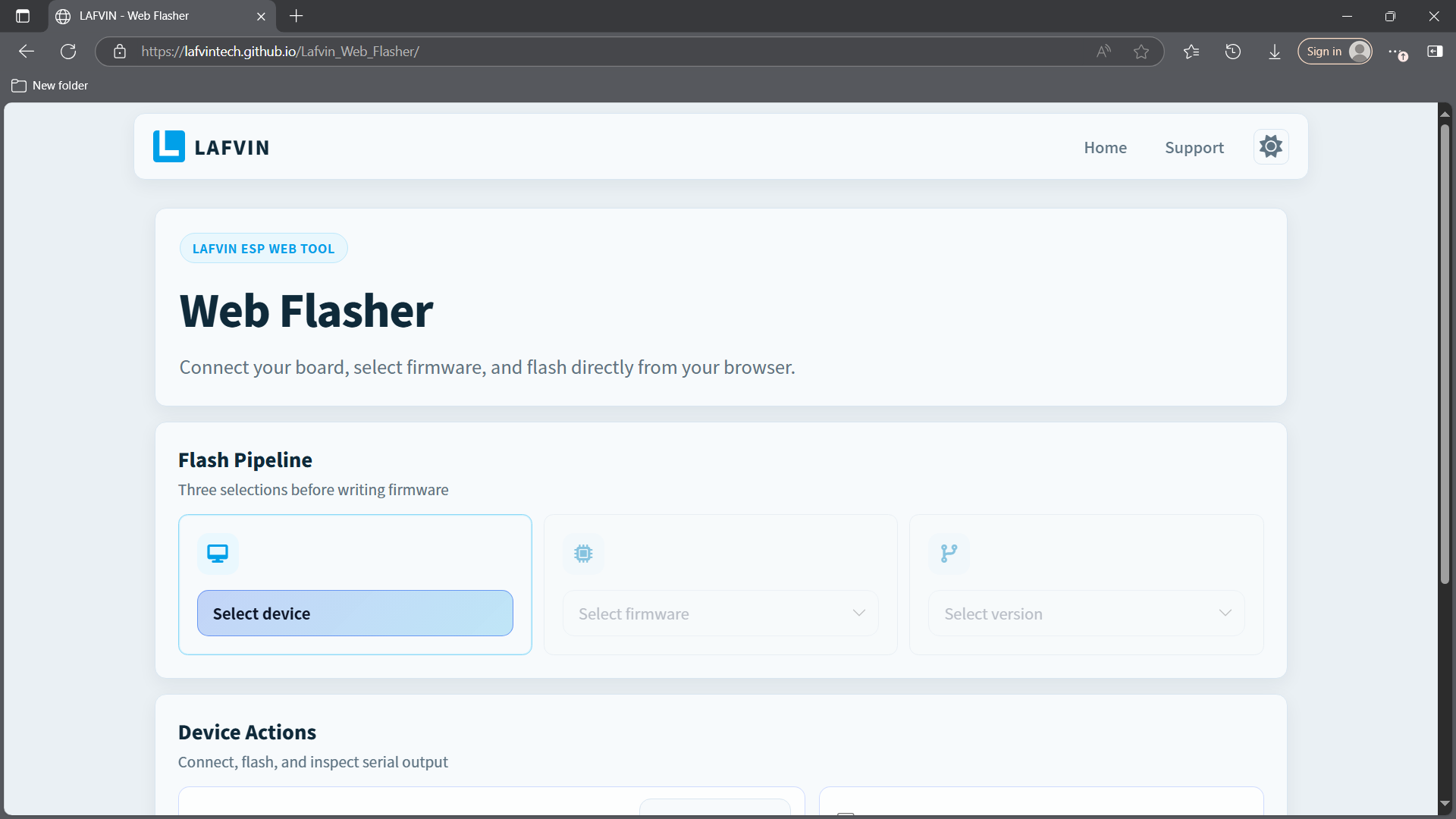
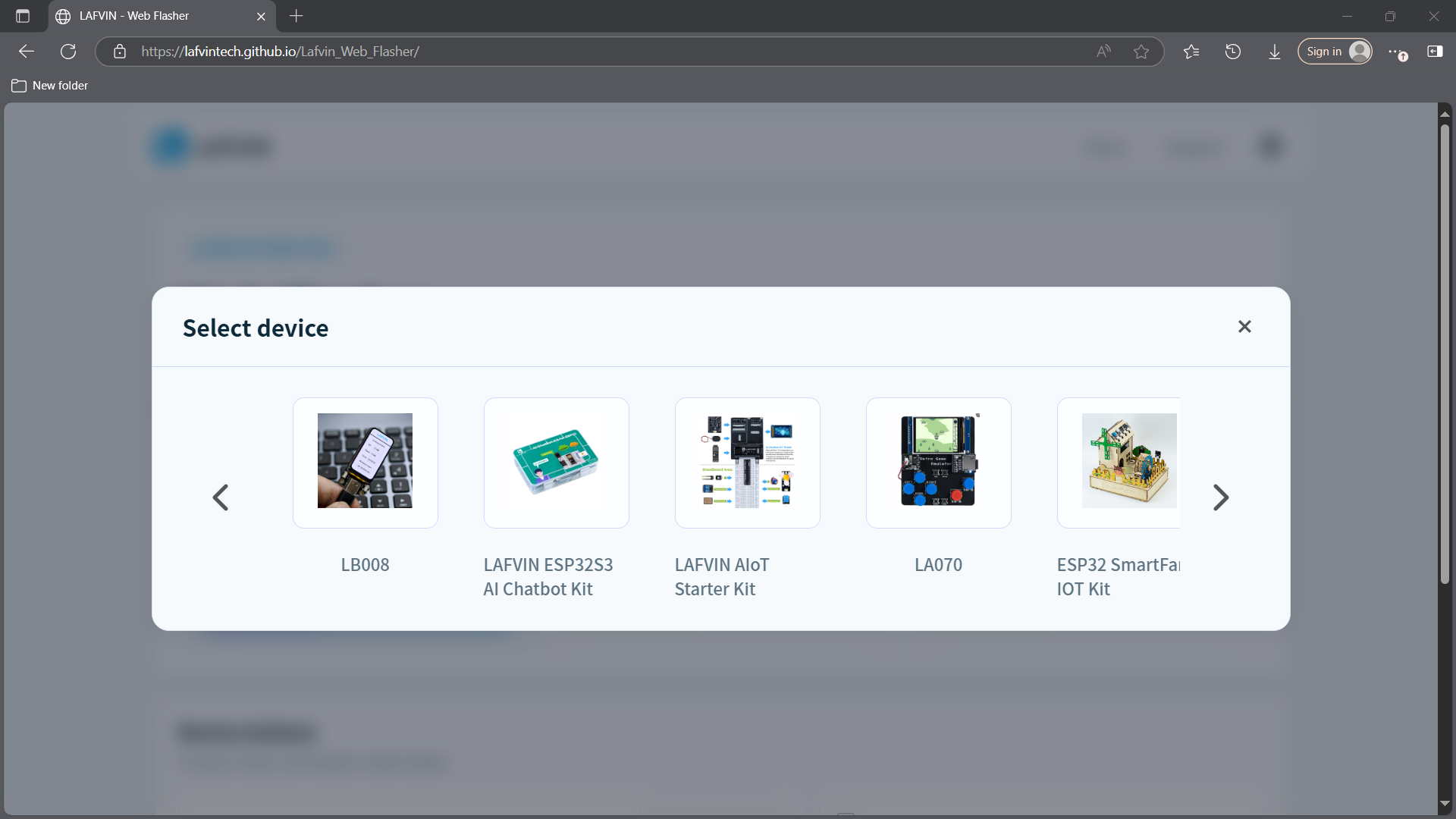
Select your kit or device model.
Select the firmware to flash.
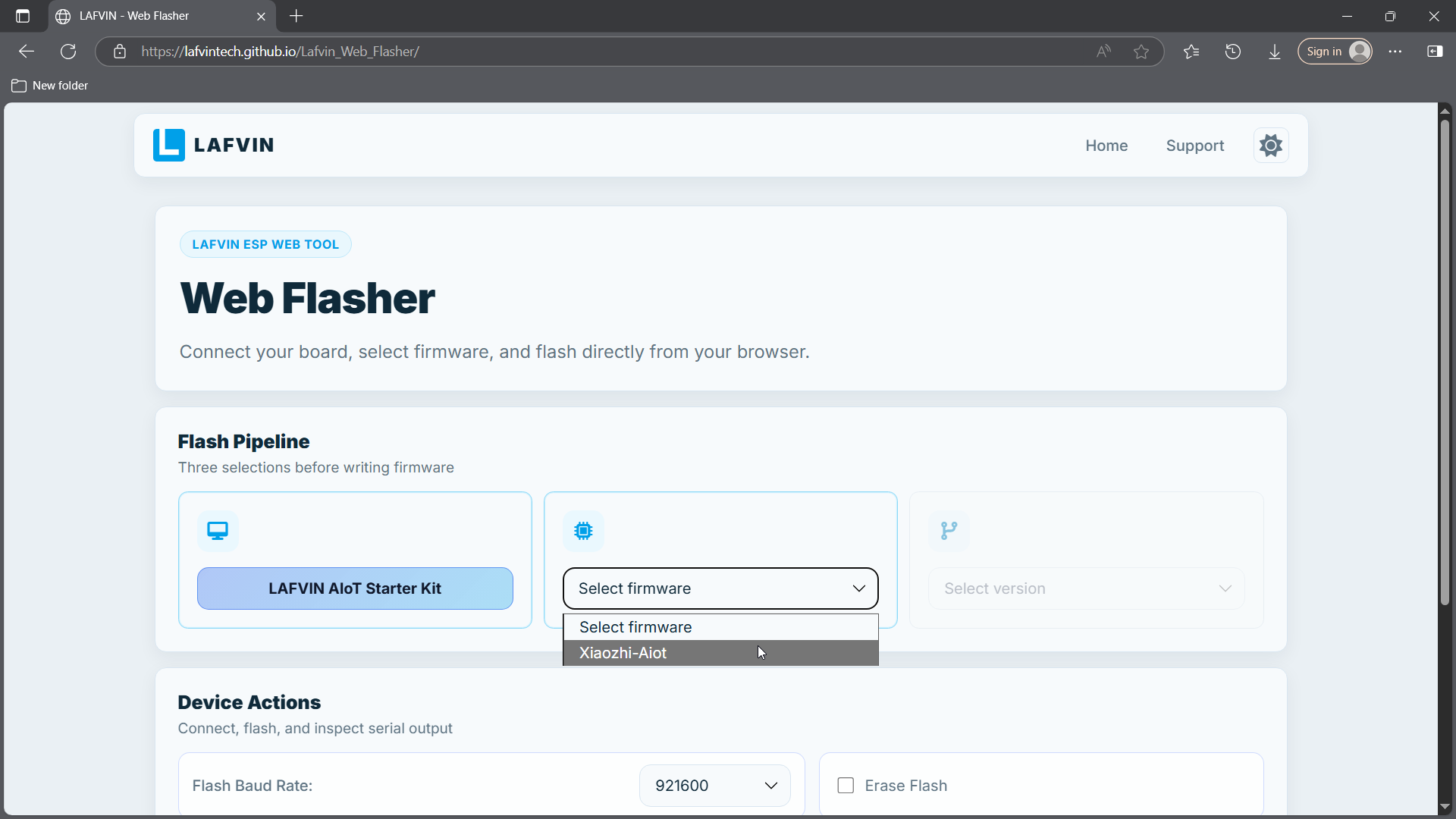
Select the firmware version.
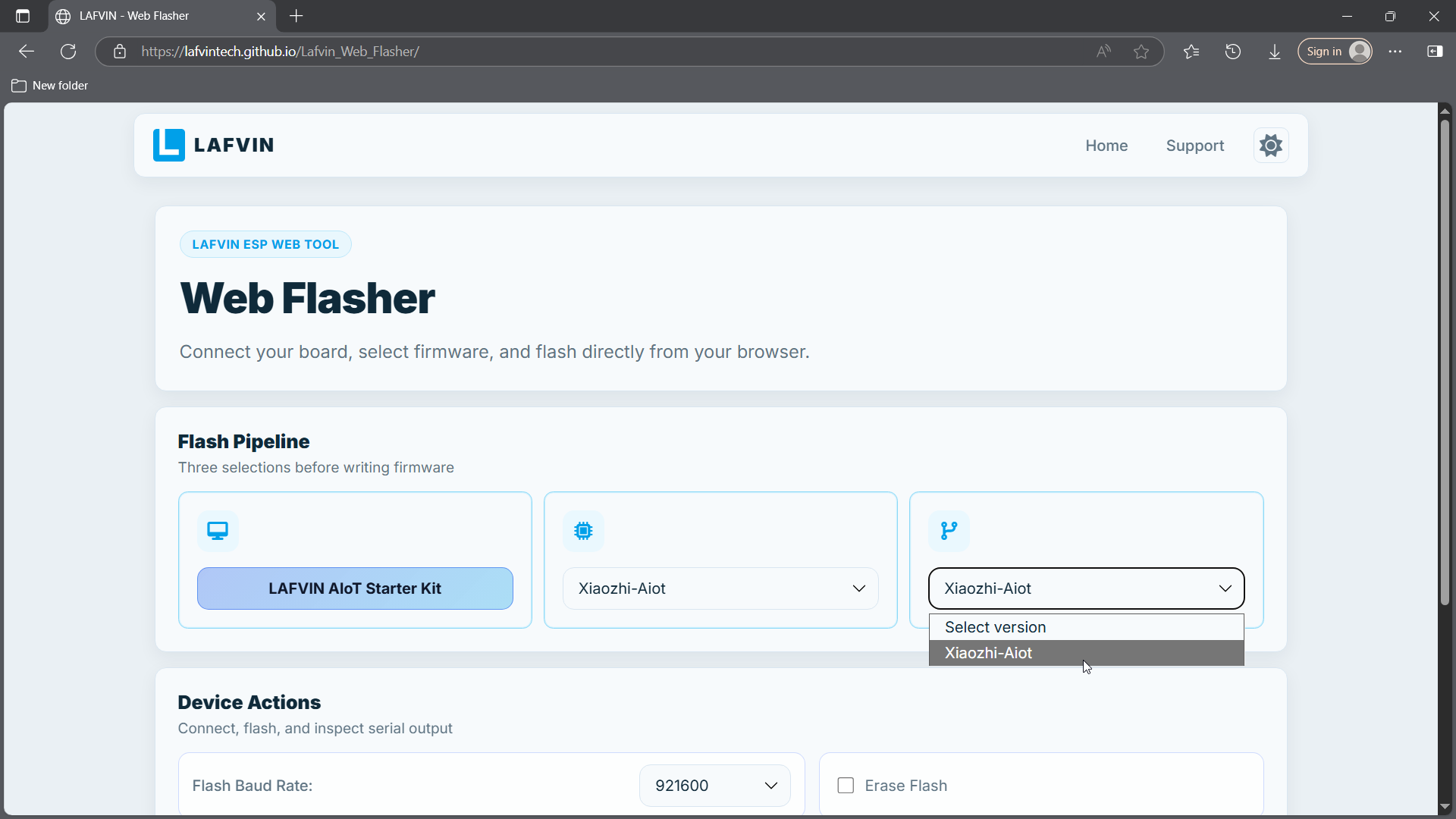
Connect the device to your computer before clicking
Connect. You may plug in the device after opening the flasher page, but it must be connected before this step.Click
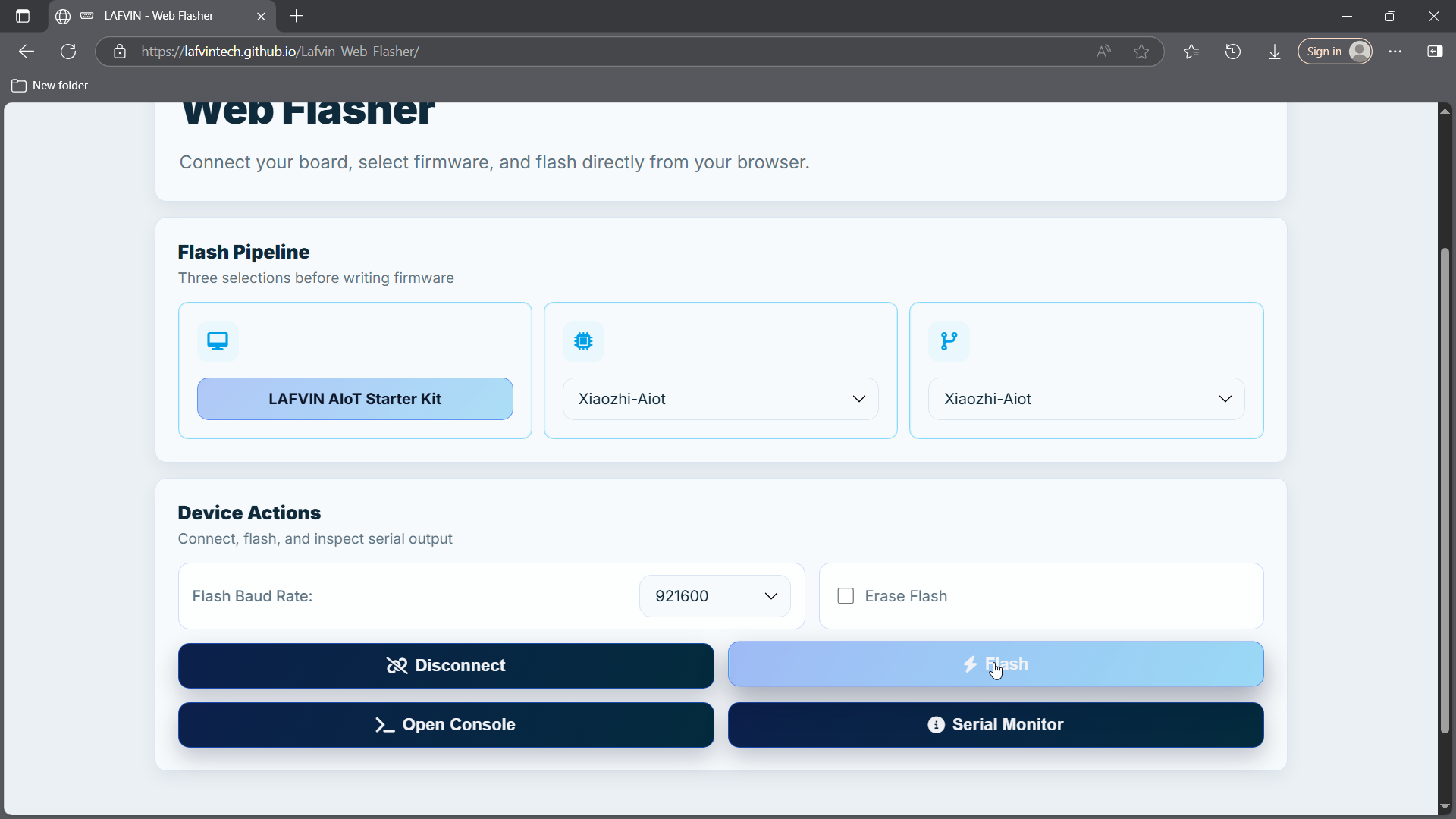
Connect. A serial port selection window will appear. Select your device, grant permission if prompted, and confirm the connection. When the connection succeeds, the button changes toDisconnect.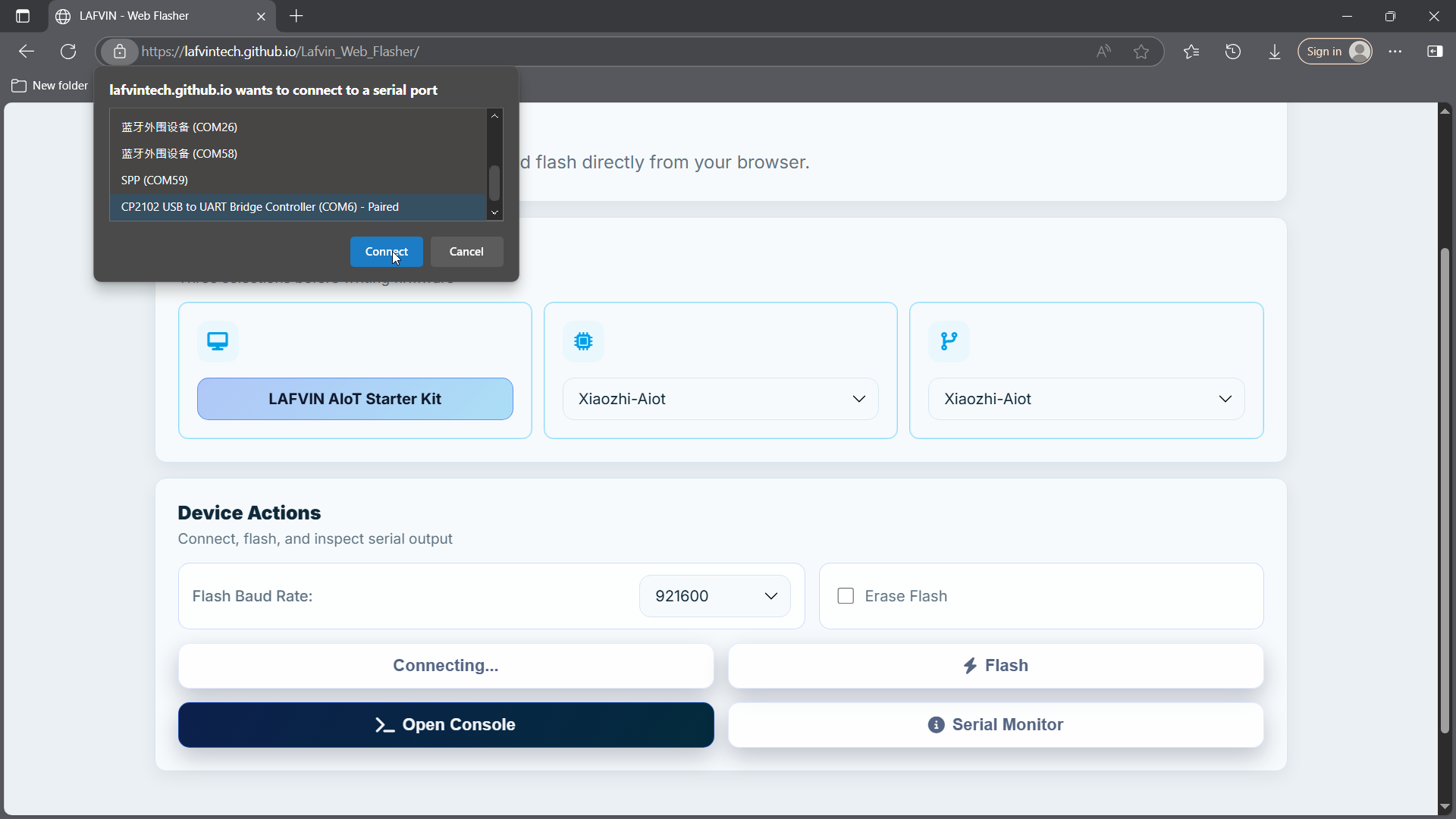
Note
When using online flashing on macOS, connect the USB Type-C cable to the ESP32-S3
USBport instead of theUARTport. Then press and holdBOOT, pressRESETwhile still holdingBOOT, and enter download mode before clickingConnector starting the flash process. The screen will turn black after the device enters download mode; this is normal.Select the
Flash Baud Rateand enableErase Flashfor the first flash or when you want a clean reinstall. Then clickFlash. The tool erases and writes the selected firmware automatically.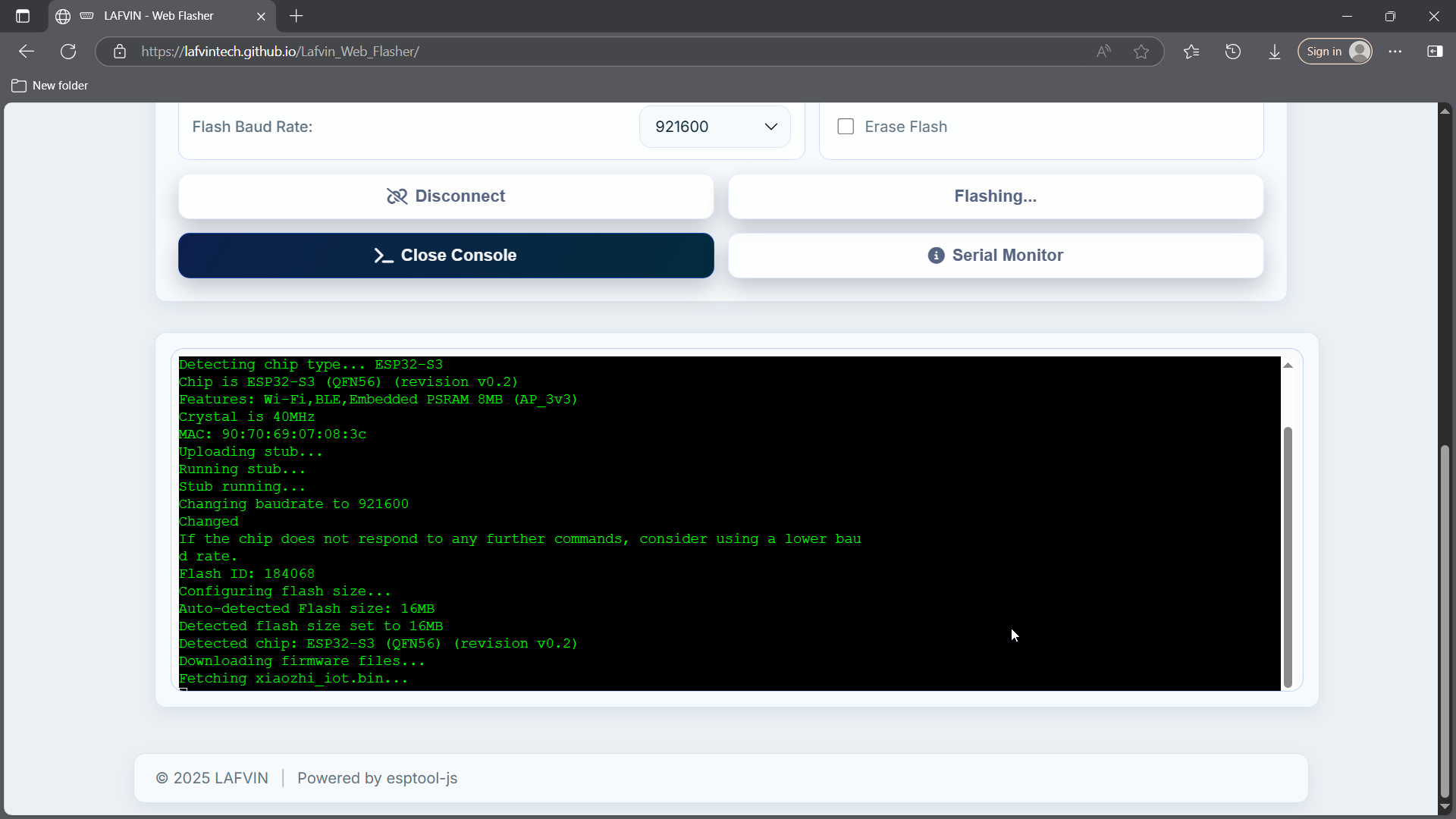
Note
Erasing flash and writing firmware may take a few minutes. Keep the browser tab open and do not disconnect the cable.
After flashing is complete, restart the device by pressing the RST or RESET button on the ESP32-S3 board. You usually do not need to unplug the USB cable.
After flashing is complete, restart the board. It should enter Wi-Fi provisioning mode so you can continue with Quick Start.
If Connect still cannot detect the board:
install the driver from Driver Installation
reconnect the board with a USB Type-C data cable
retry in Chrome or Edge
use the local flashing alternative in 4.Xiaozhi AI Setup